WordPress Loading Slowly? The Most Useful WordPress Optimization Tutorial on the Web

Repost license
转载需先申请授权,并保留授权码、原文地址和文中 go/affiliate 链接。
Original URL:https://www.geekcorelab.com/post/is-wordpress-loading-slow-the-most-useful-wordpress
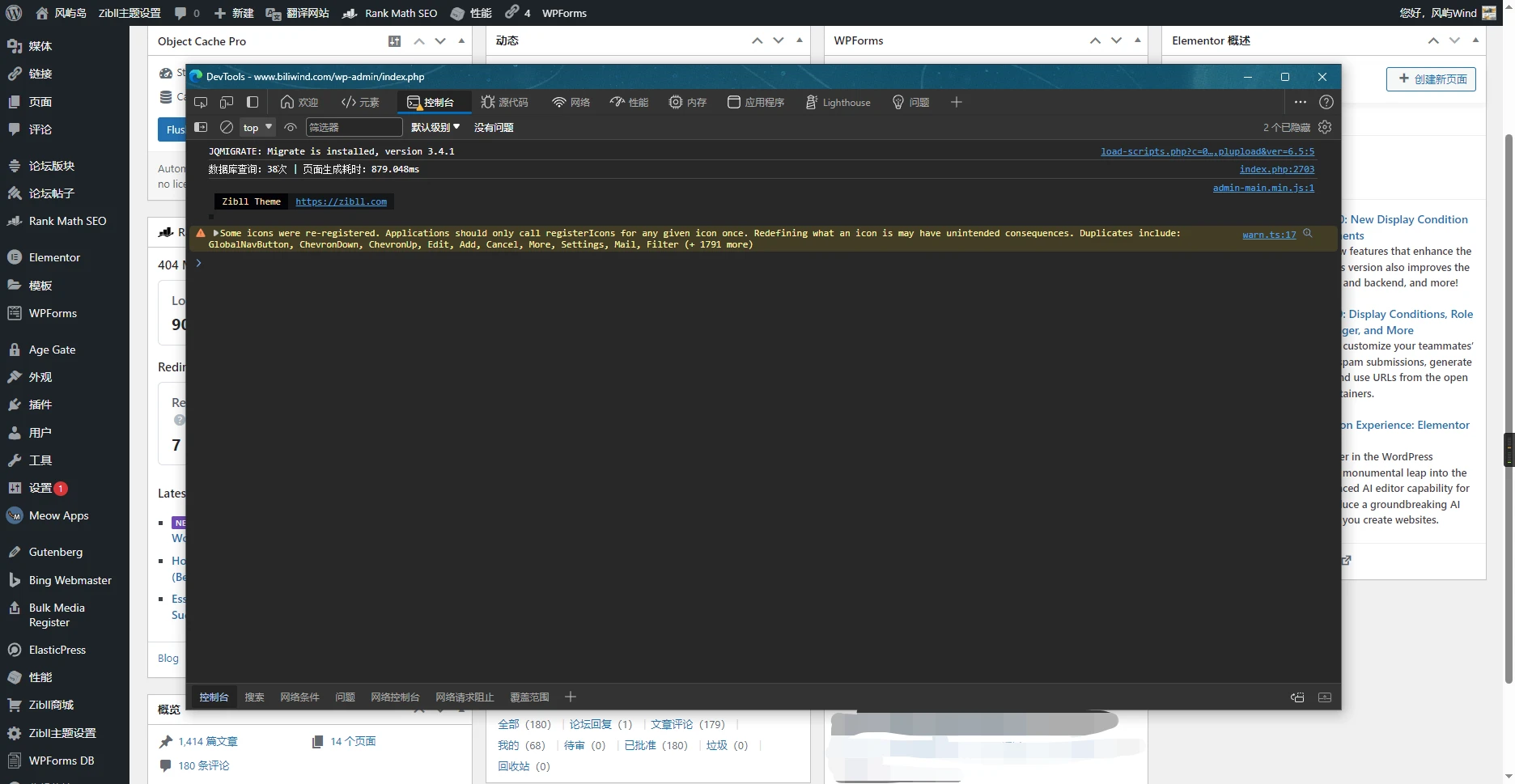
Optimization Results for This Site
Backend around 880ms
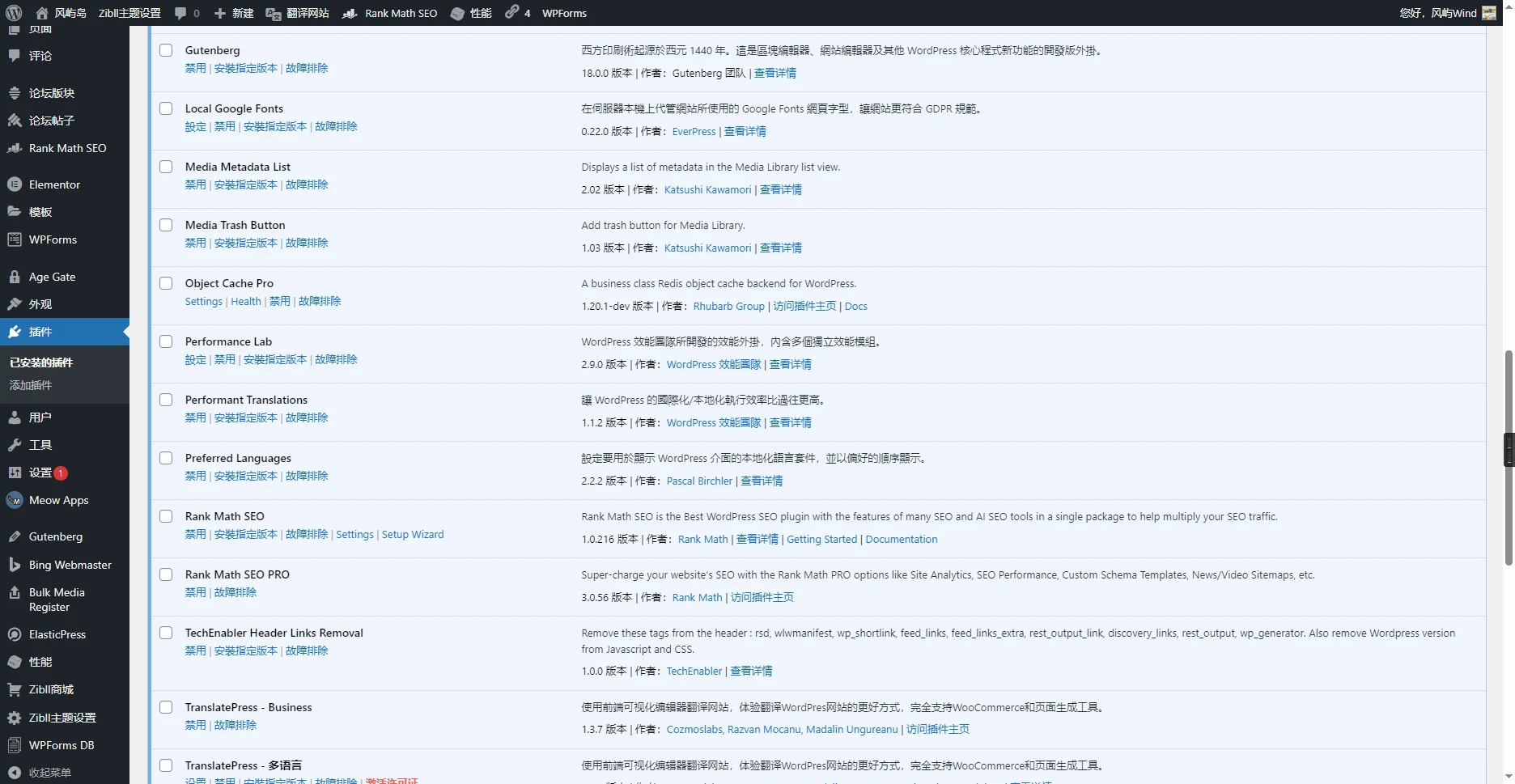
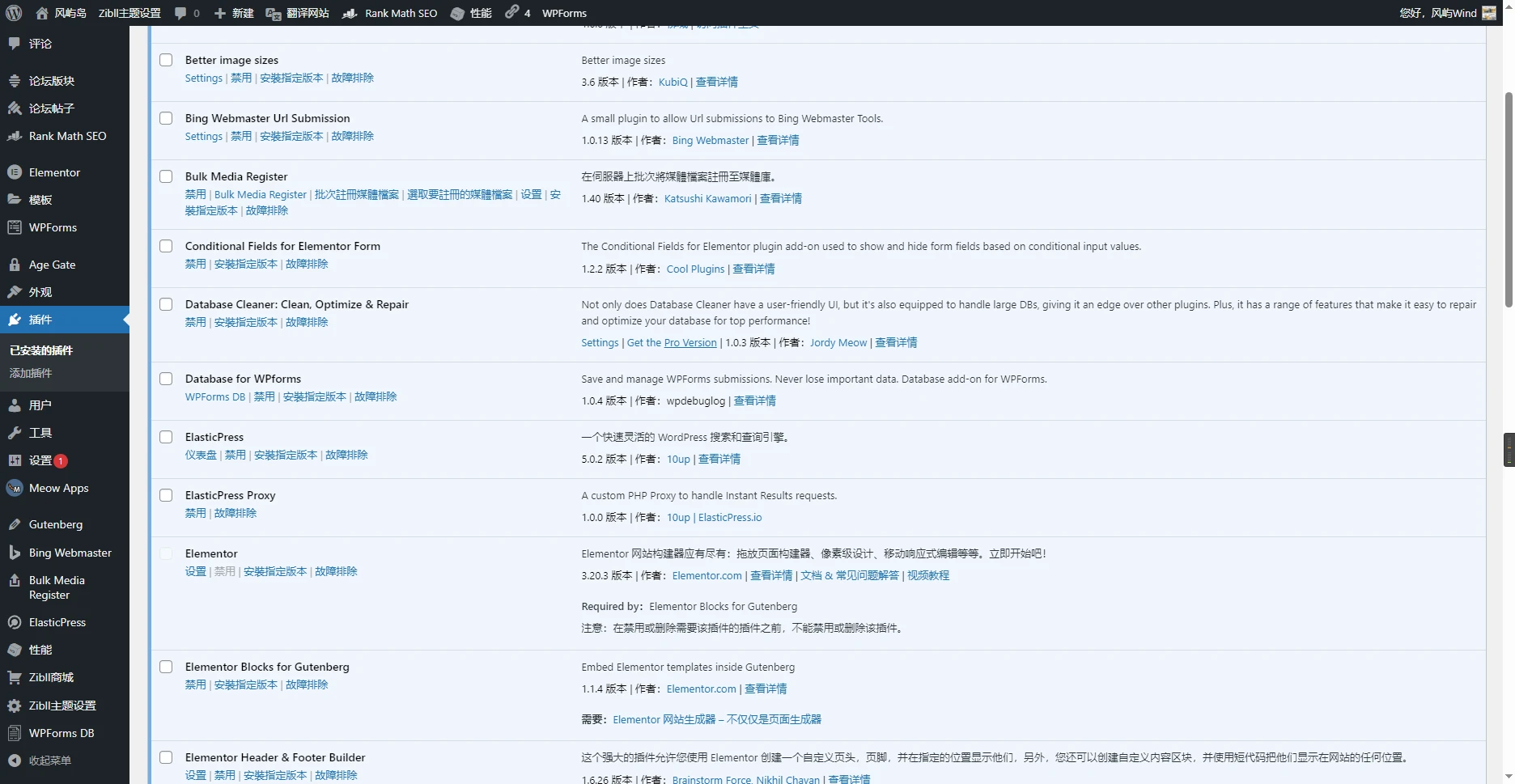
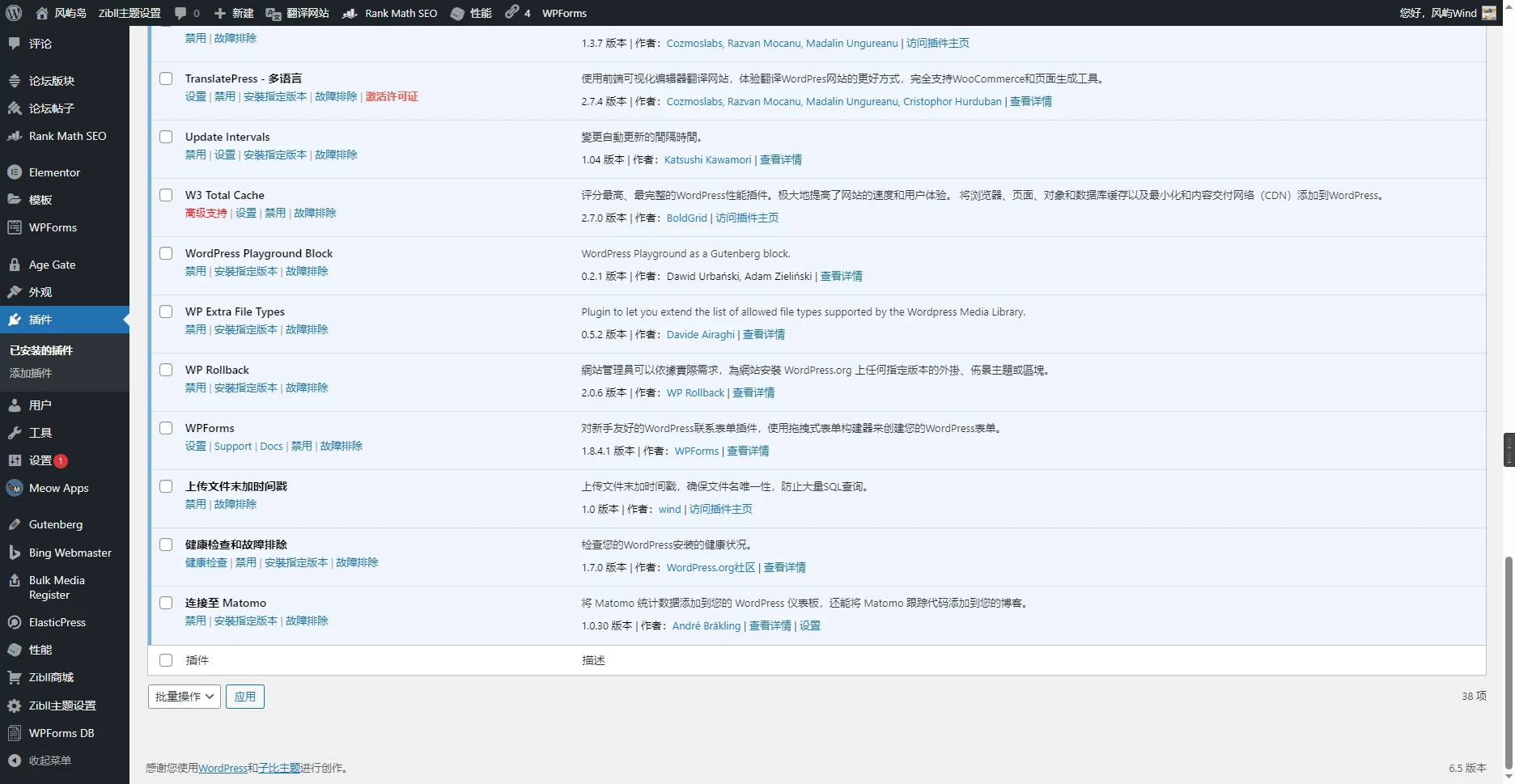
Some Plugins Used on This Site
Optimization Tutorial
Plugin Selection Recommendations
When choosing plugins, be sure to ensure that multiple plugins do not have conflicting functions, especially caching and optimization plugins
Someone once asked in a certain group: "I installed more than 10 caching plugins, why is the site still slow?"
For this kind of problem, one caching plugin with a poor configuration is enough to slow down performance, let alone more than 10
Every time you change cache settings, be sure to test whether the frontend and backend functions work properly
In some special cases, enabling caching can actually make loading slower
In addition, for plugins with a "free CDN" feature, try not to enable this feature. When your server's network route is good enough, this method can instead extremely seriously slow down website loading speed
Add a Timestamp to the End of Uploaded Files
It is recommended to install this plugin early when setting up the site. If you upload images to your site and the images all have the same name (for example, some screenshot tools directly set the image name to image.png when copying an image)
Then when uploading to WordPress, the server will repeatedly perform SQL queries and renaming
To learn the detailed implementation of this plugin and why a timestamp should be added at the end of the file rather than at the beginning, see:
[postsbox post_id="19123"]
Nginx Cache + Memcached Cache
To achieve this, you can try using the W3 Total Cache plugin
This will enable Nginx Cache + Memcached Cache. If this option is unavailable, check whether your web server is Nginx or any of its forks, and check whether the Memcached extension is installed for PHP
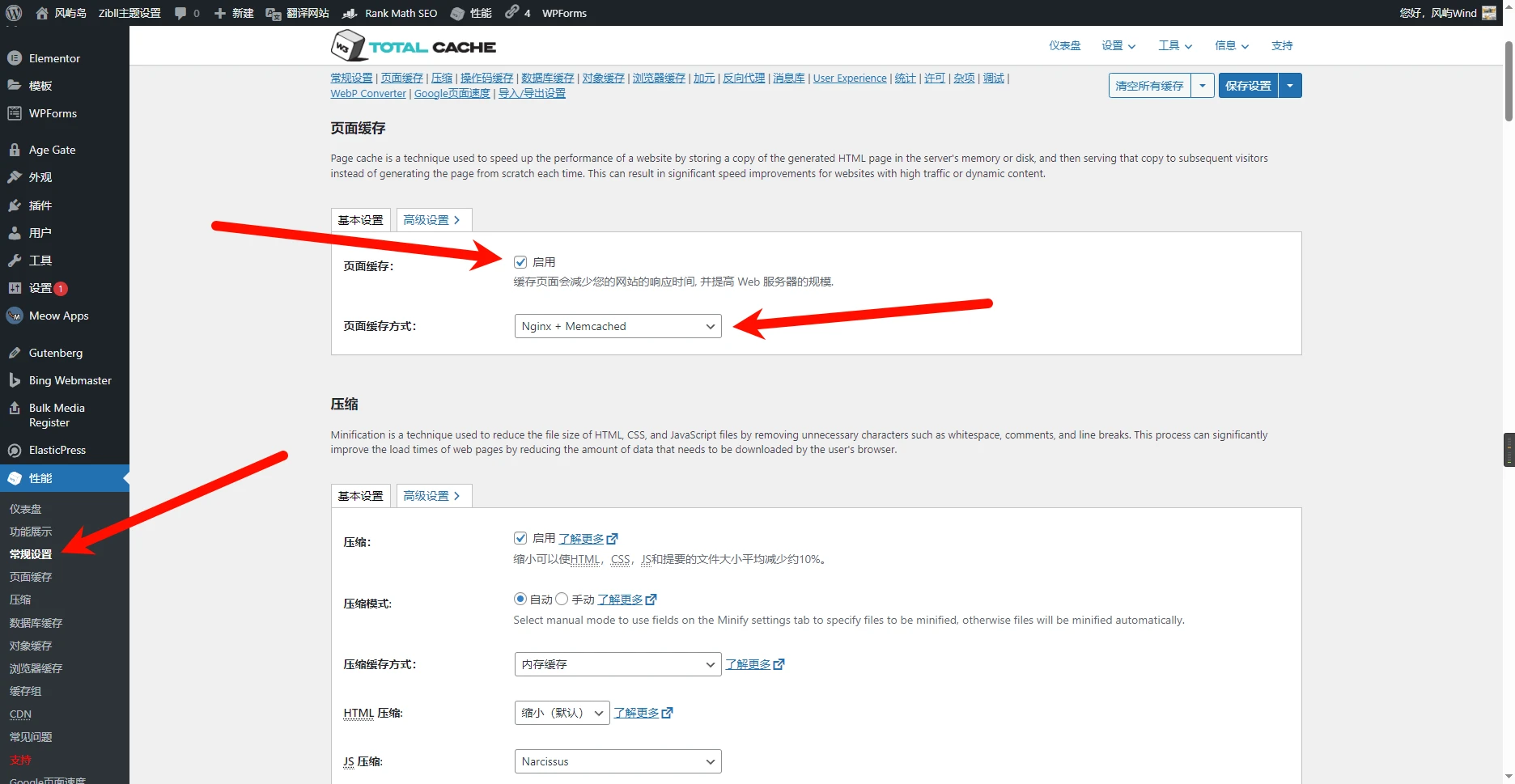
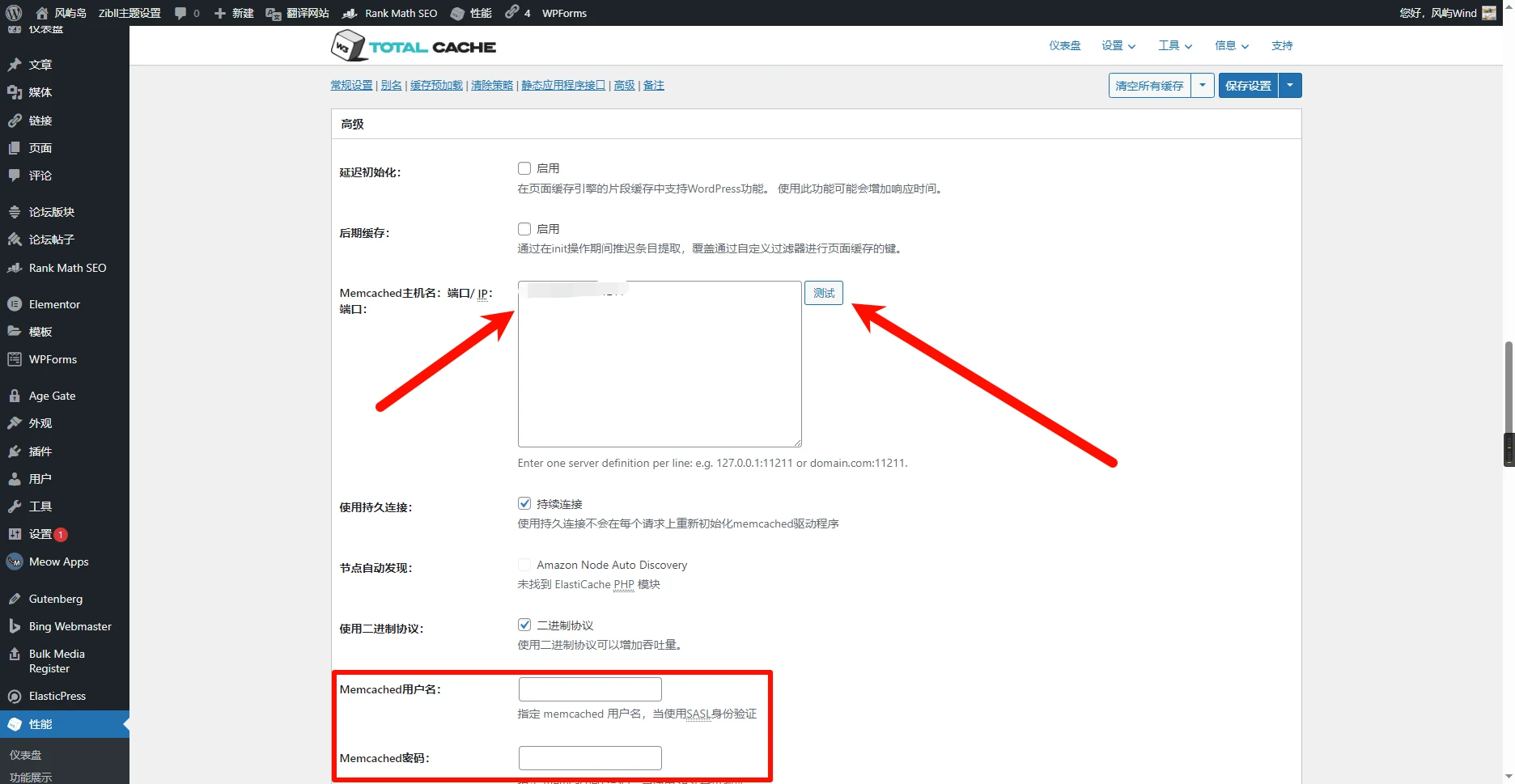
After that, we enter the Memcached address in the advanced settings. If you use the BaoTa panel, you can directly enter 127.0.0.1:11211. If you use 1Panel or a separated deployment, then I probably don't need to teach you
Redis Object Cache
For Redis object caching, I use Object Cache Pro; the plugin is paid
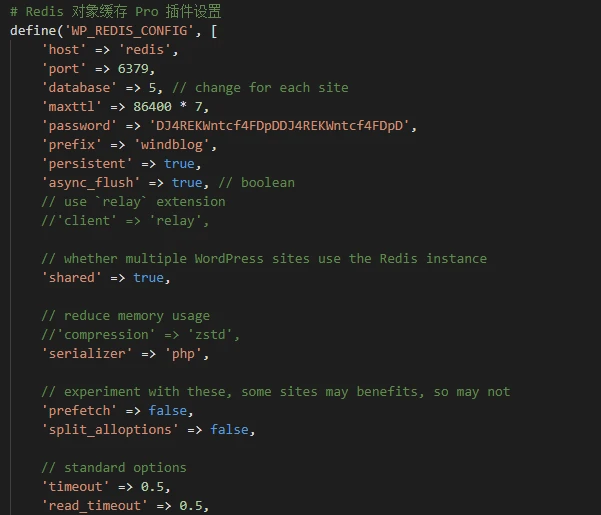
You need to configure the plugin in wp-config.php, which has a certain technical threshold
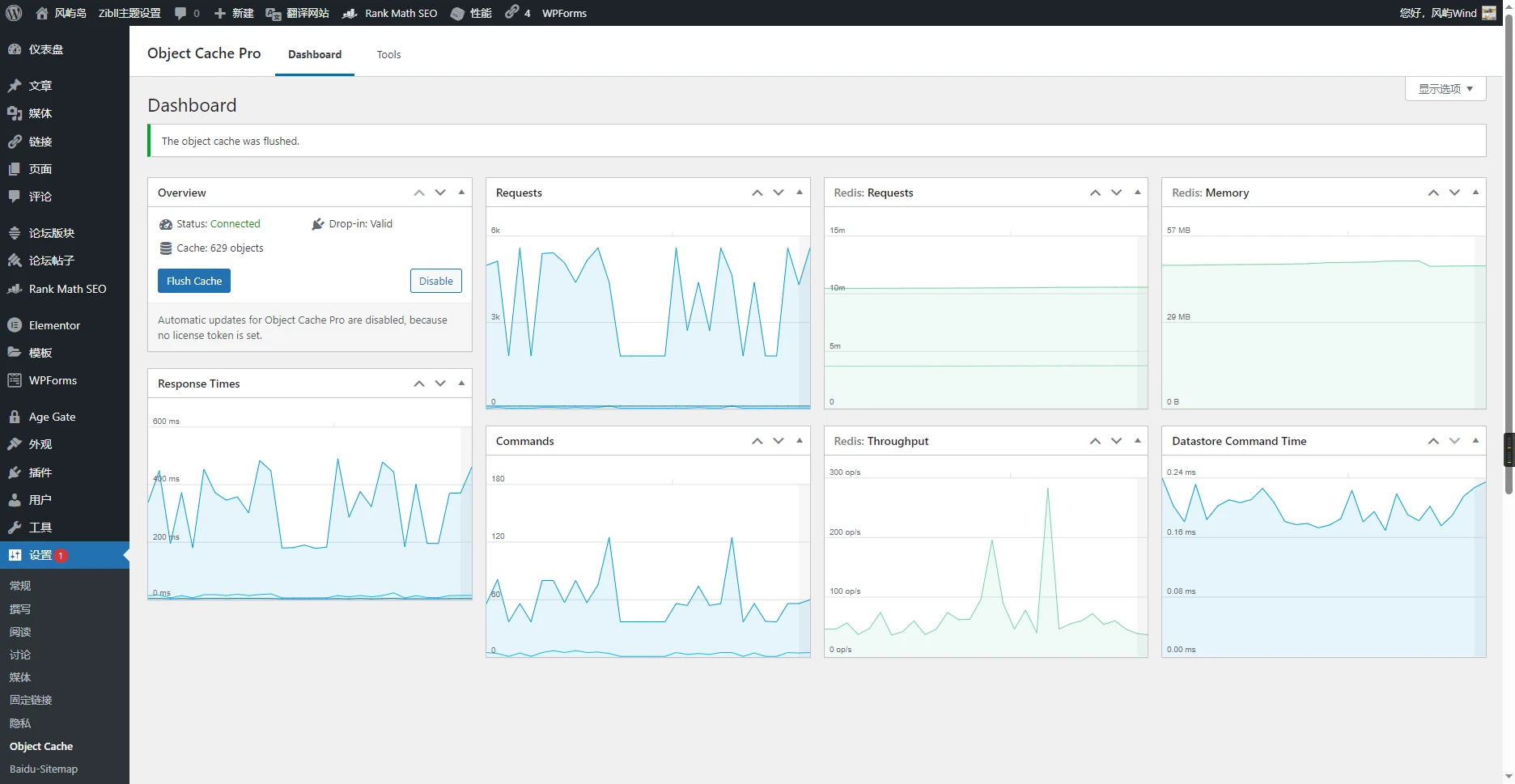
If your technical skills are average, please use the free version of this plugin, namely Redis Object Cache
i18n Performance Optimization
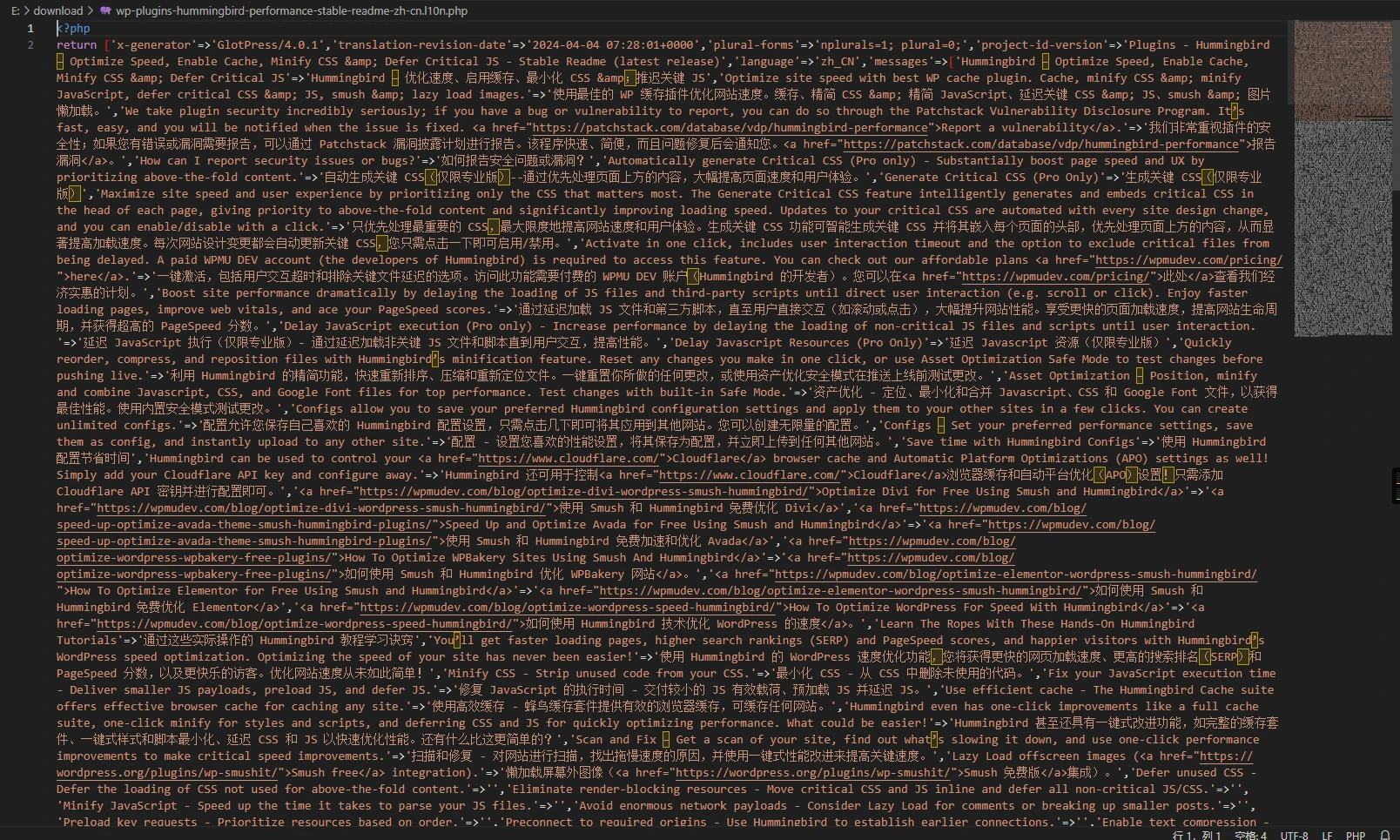
Currently, the translation format used by WordPress is .mo/.po, but a .php translation format has been added in the latest feature
You can directly export one from the official WordPress translation website
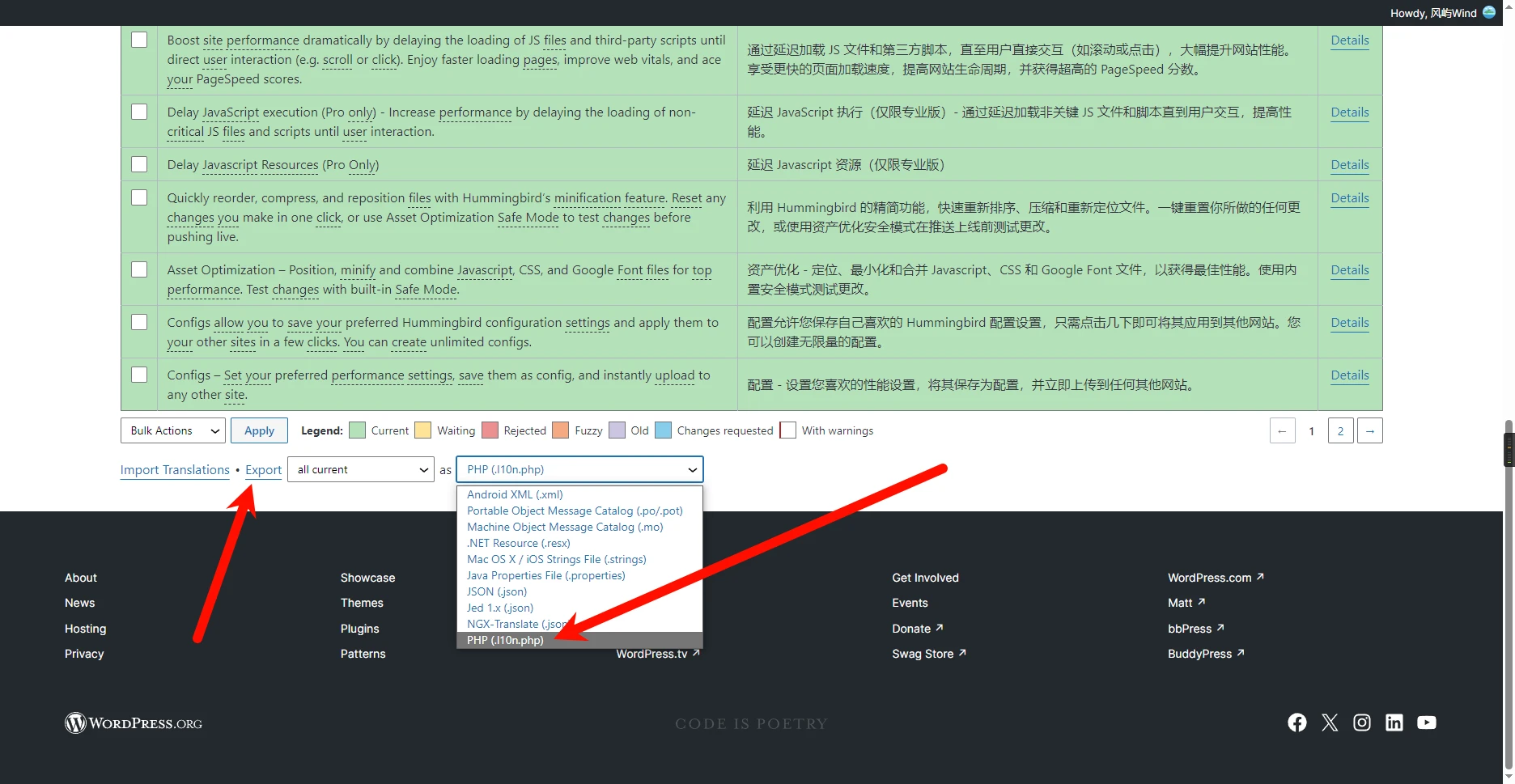
If you want to use this translation format, you need to install the Performant Translations (wordpress.org) plugin
Search Performance Optimization
I use the ElasticPress plugin to index site-wide information, but this plugin seems to have a fatal bug, namely incorrect relevance weights
This plugin needs to be used with Elasticsearch, so the server must be at least 2c4g
Media Library Slimming
The Better image sizes plugin can help you disable some image sizes you don't use, preventing WordPress from automatically generating them and taking up more disk space
In addition, you can install the Media Cleaner (Pro) plugin to directly scan and clean the uploads directory, rather than cleaning based on information already recorded in the database
If you want to register an image in the WordPress media library, you can use the Bulk Media Register plugin
Several Methods for Website Speed Testing
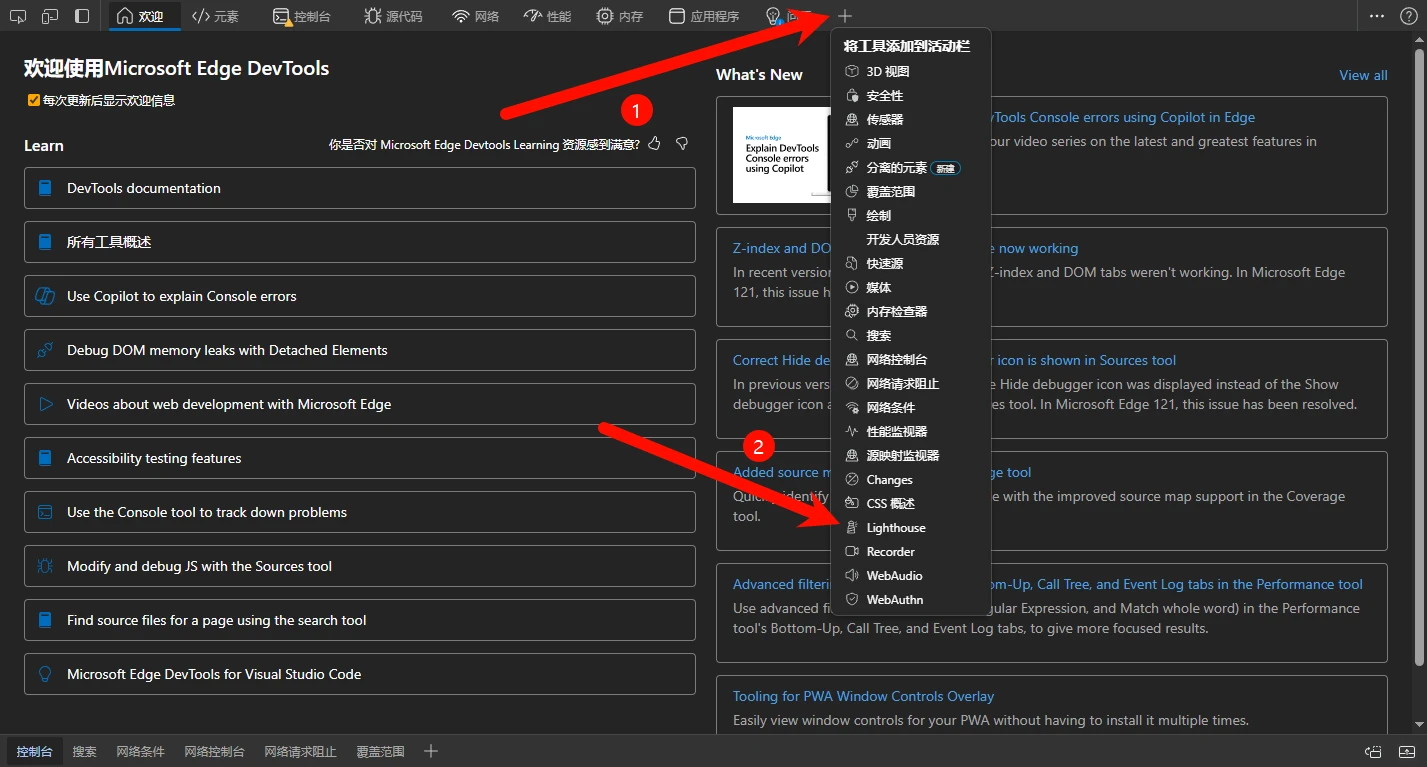
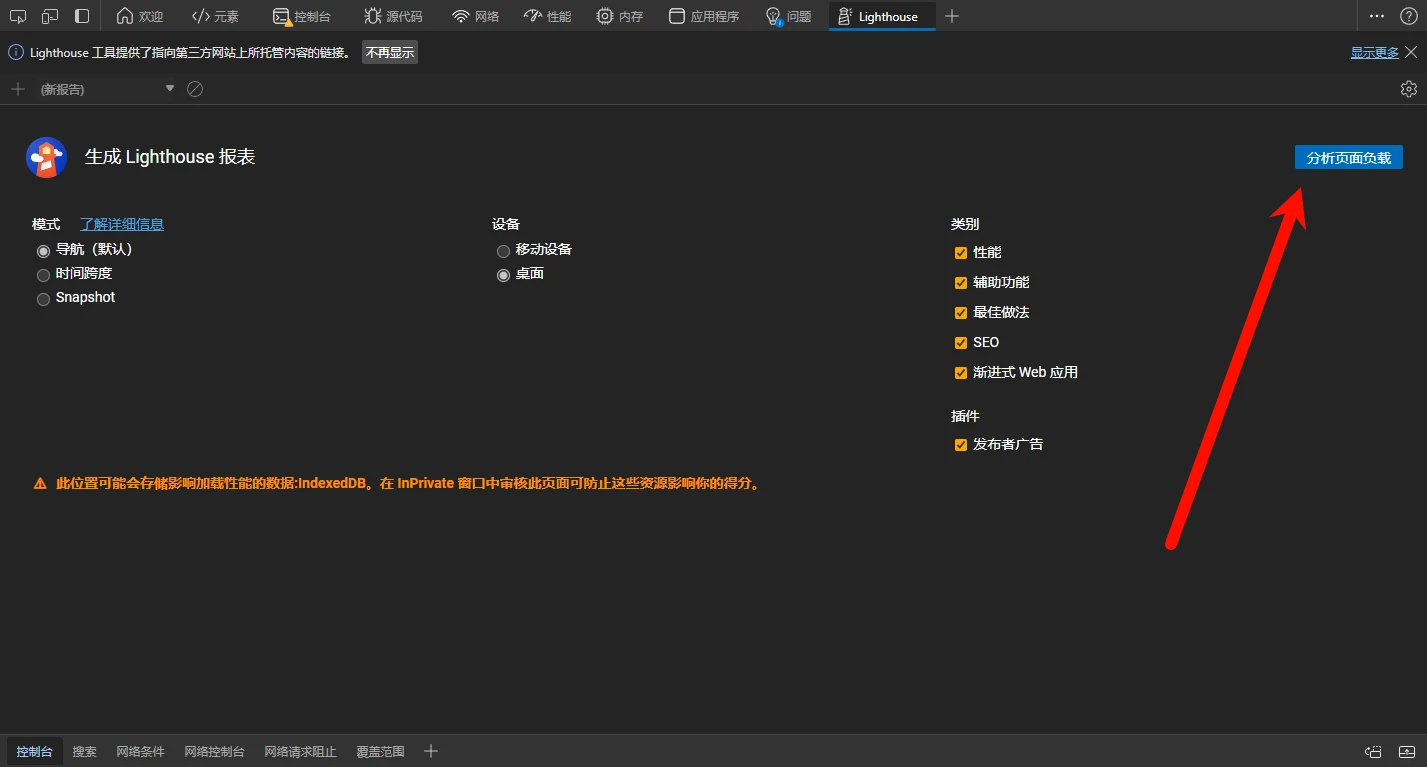
Built into the Browser
The browser has a built-in testing tool, similar to Google's page test
To be continued
Comments
Discussion
Be kind and keep the discussion friendly.
Discussion
0 comments