Data Recovery After a PVE Crash and the Pitfalls I Encountered

Repost license
转载需先申请授权,并保留授权码、原文地址和文中 go/affiliate 链接。
Original URL:https://www.geekcorelab.com/post/record-the-data-recovery-and-pitfalls-after-a-pve-failure
Problem Overview
The cause was that I was doing routine backup work on virtual machines, but PVE actually froze after backing up the second virtual machine. I tried refreshing the WebUI and connecting via SSH, but there was no response. Then I pressed the power button once, hoping it would go through the normal shutdown process, but no matter how many times I pressed it, PVE ignored me; instead, it was trying to start itself up again. This resulted in a strange phenomenon visible on the network:
- 192.168.1.3 (PVE)
- 192.168.1.103 (running Docker)
- 192.168.1.107 (controller)
Among them, the IP of 192.168.1.3 was always present, and 192.168.1.103 was also always present, but 192.168.1.107 would suddenly come online after a while and then immediately go offline again.
After that, I kept trying to connect via SSH, but all attempts failed. So I simply powered it off and restarted directly. If nothing unexpected happened, something unexpected happened: after booting, it jumped to the grub> command line.
The Pitfalls Begin
Because it jumped to grub> on boot, I judged that the bootloader was damaged. I didn't know how to fix it, so I searched for tutorials.
Recover From Grub Failure - Proxmox VE
I followed the official tutorial, but found that it didn't work. Eventually I gave up on studying the official tutorial and searched the internet for other solutions.
I referenced a ton of tutorials, and I did this:
grub> ls
(hd0) (hd0,gpt1).....
grub> ls (hd0,gpt1)/
......
Eventually I found that the original system was in hd1, and only one partition used for EFI could be viewed with the ls command under grub. hd0 was the USB drive I used to install ventoy. So I carefully compared the contents of that only accessible partition with the contents online.
The things that should be in boot according to what I found online```
ls (hd1,gpt1)/EFI/
proxmox boot
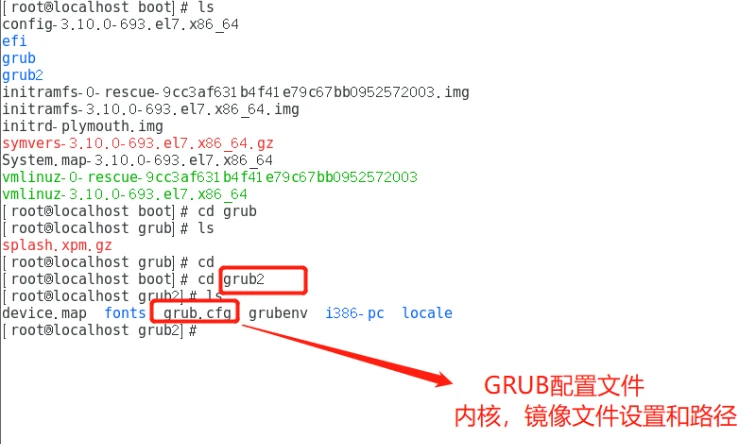
After that, after looking around for a while, I found that it completely didn't match what was online.

After that, I remembered that the original PVE was installed with the xfs file system, so I ran
grub>insmod xfs
After that, I tried browsing the contents of those partitions again, and found that they still couldn't be browsed.
So I rebooted into Win PE to try my luck. In DiskGenius, I saw that besides the boot partition, there was also a root partition, but it seemed to be damaged. The other partition was Linux-LVM, a logical volume, which is the data area PVE uses by default to store disk images and CT volumes. So I wanted to enter Ubuntu LiveCD mode and try to repair or export the data.
After entering Ubuntu LiveCD, I tried to mount the LVM in the way described in the previous PVE official documentation.
- `sudo vgscan`
- `sudo vgchange -ay`
Here it indicated that the LVM volume had already been activated, so I started mounting according to the official tutorial.
- `sudo mkdir /media/RESCUE`
- `sudo mount /dev/pve/root /media/RESCUE/`
After executing the second command, an error was reported, indicating wrong fs type, bad option, bad superblock. Seeing wrong fs type, I thought it might be because Ubuntu LiveCD used ext4 rather than the xfs I had used before, so it couldn't mount. So I simply found a USB drive and made it xfs to try mounting again, but it still didn't work. So I took a spare hard drive and wanted to first install a new PVE system, then import the data from the old disk into the new disk.
When installing the new PVE, when it was almost finished, it prompted that the logical volume pve already existed and asked whether to rename it to pve-OLD-xxx and continue the installation. Here you must let it rename.
After installation, I went to the PVE WebUI and clicked Datacenter - Storage, and found that the LVM name of the old disk had already been renamed to pve-OLD-xxx.
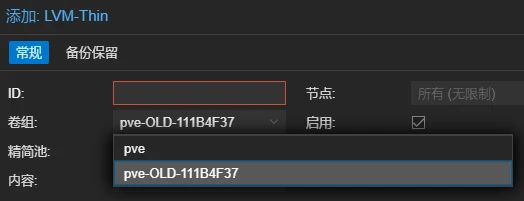
I mounted this volume and found that the original virtual machine disks were all still there.
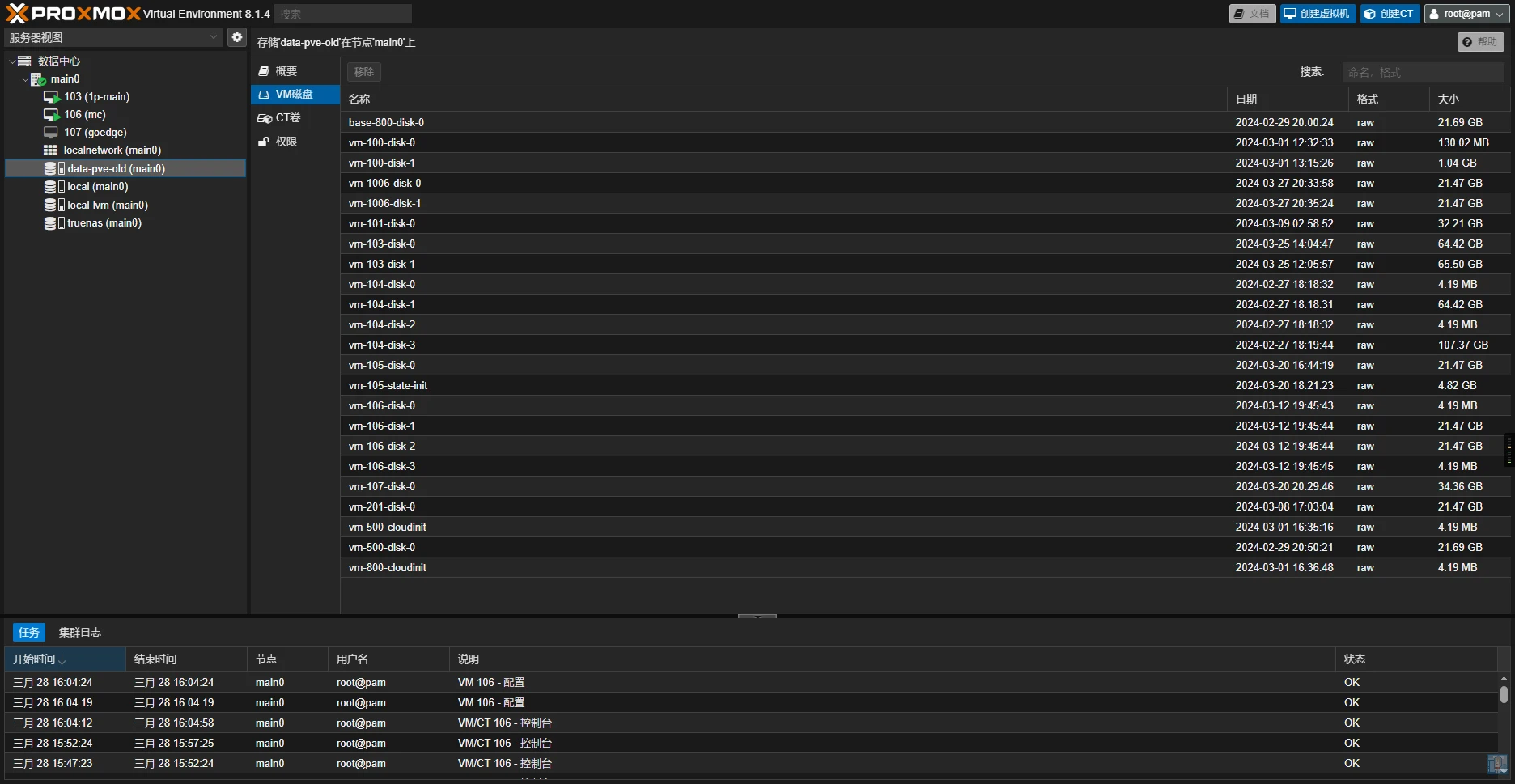
At this point, I could figure out a way to import them. My idea was to first create a virtual machine, then use the qm importdisk command to import the disks into the new virtual machine.
Connect via SSH to check the old data.

Then I found that directly using qm importdisk to import wouldn't work and would report an error, so I planned to export first and then import.
qemu-img convert -c -O vmdk /dev/pve-OLD-111B4F37/vm-107-disk-0 /mnt/pve/truenas/vm/vm-107-0.vmdk
Use this command to export as vmdk.

This command seemingly produces no output other than errors.
qm importdisk 107 /mnt/pve/truenas/vm/vm-107-0.vmdk local-lvm
Import the disk into the virtual machine.
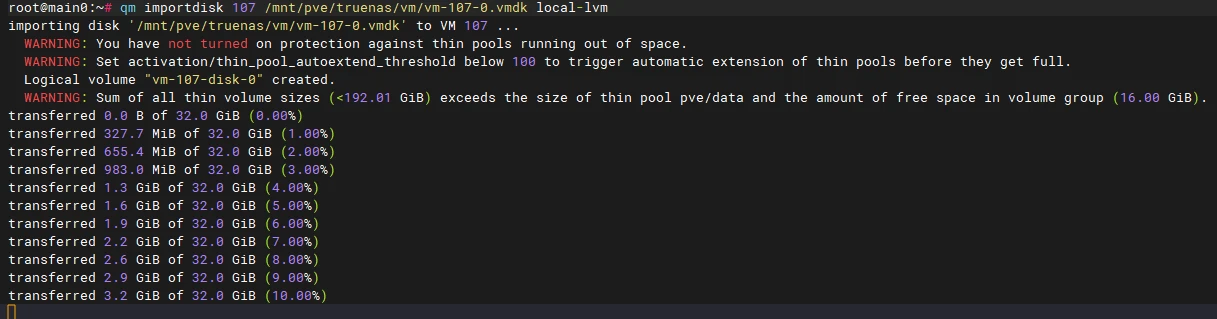
We also followed the principle of ignoring warnings and imported it. During the import, a percentage will be shown. The import is slower at the beginning and faster later (because the later space is not occupied). At 100%, it will hang for a while.
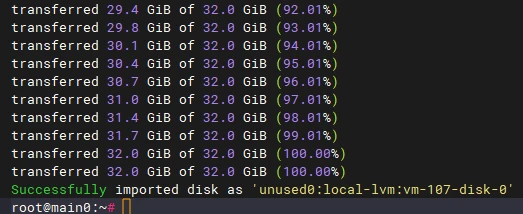
This way the import succeeded.
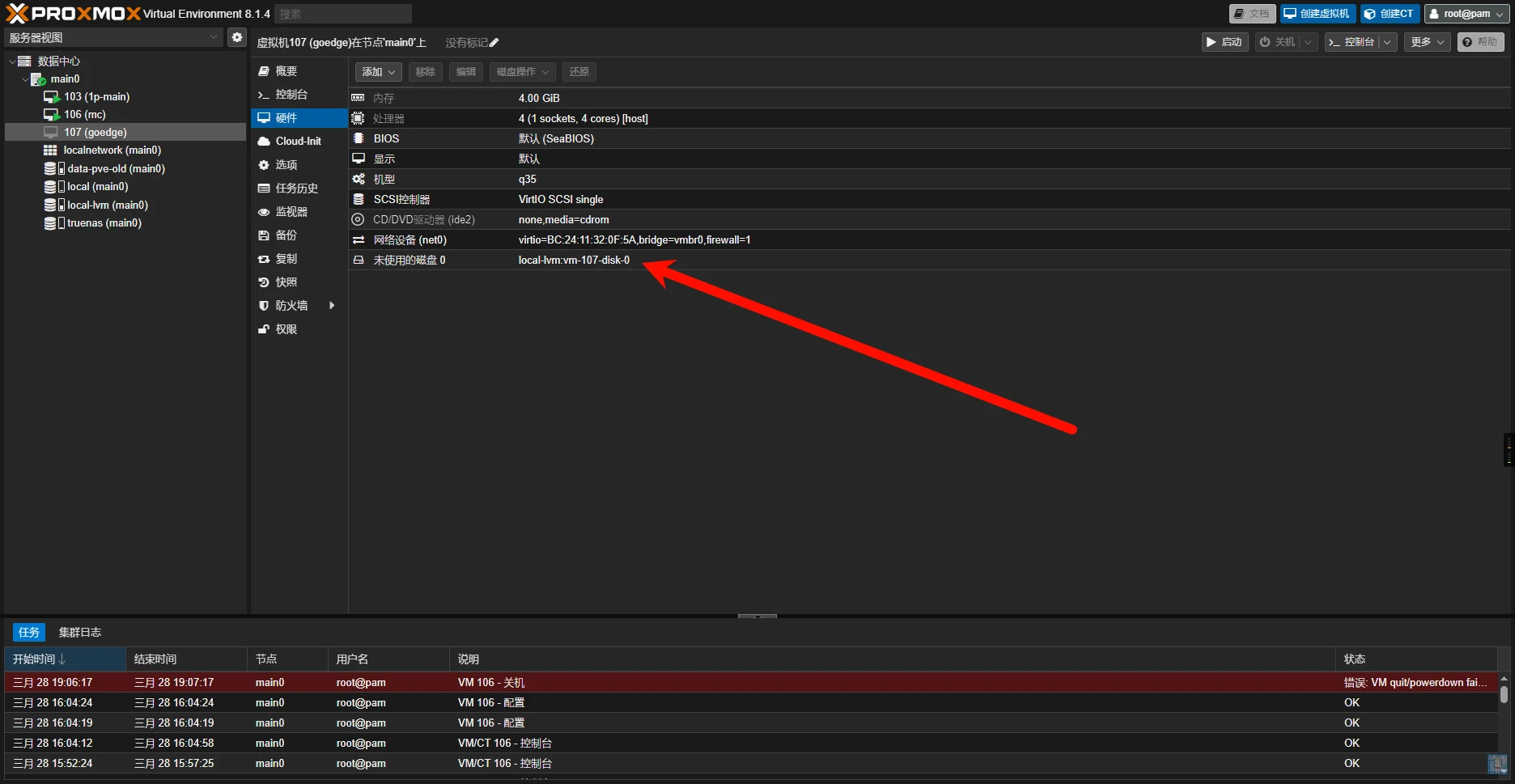
After that, you can see the unused disk in the WebUI. Double-click it and click Add.
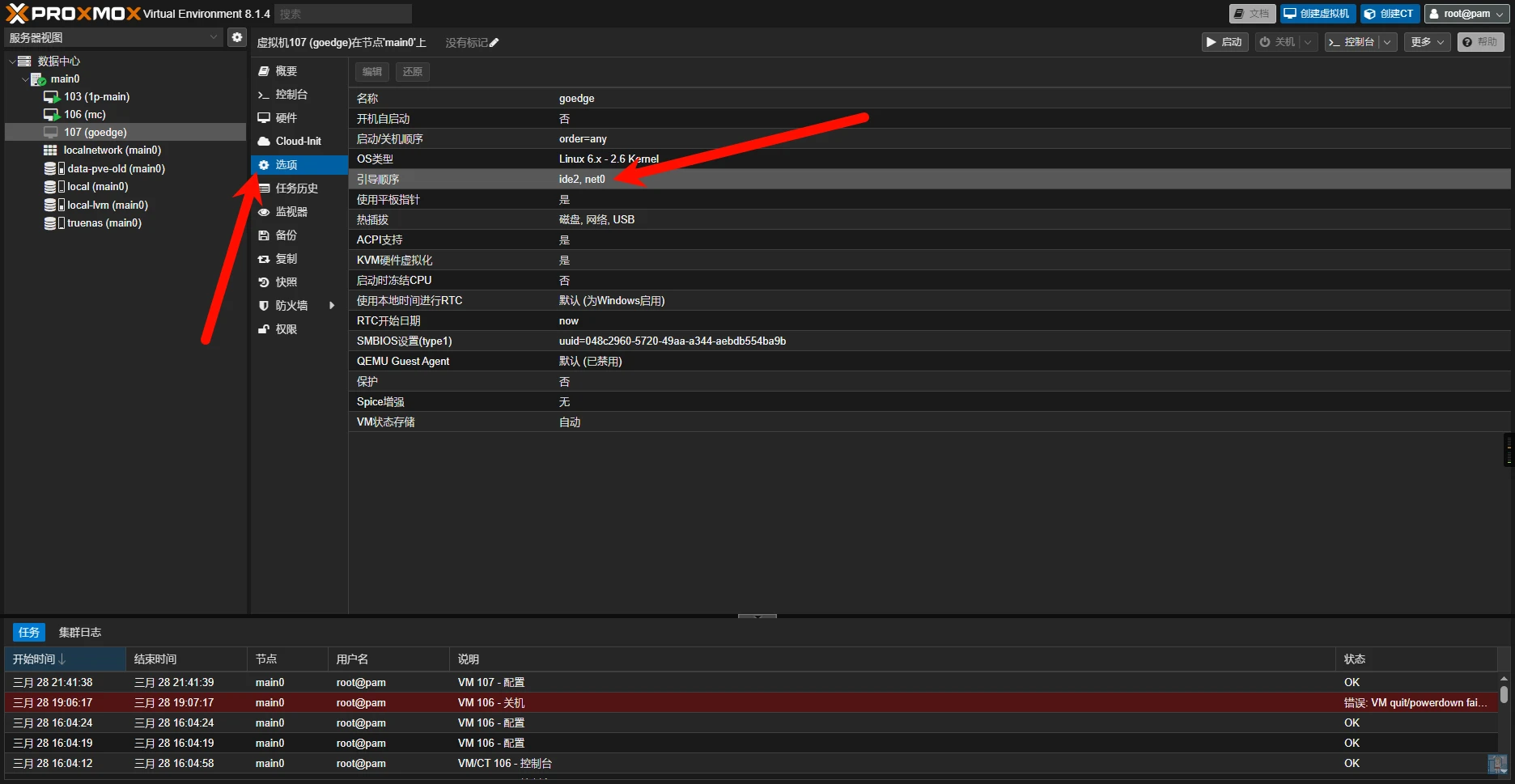
Remember to check the boot option for this disk in Options.
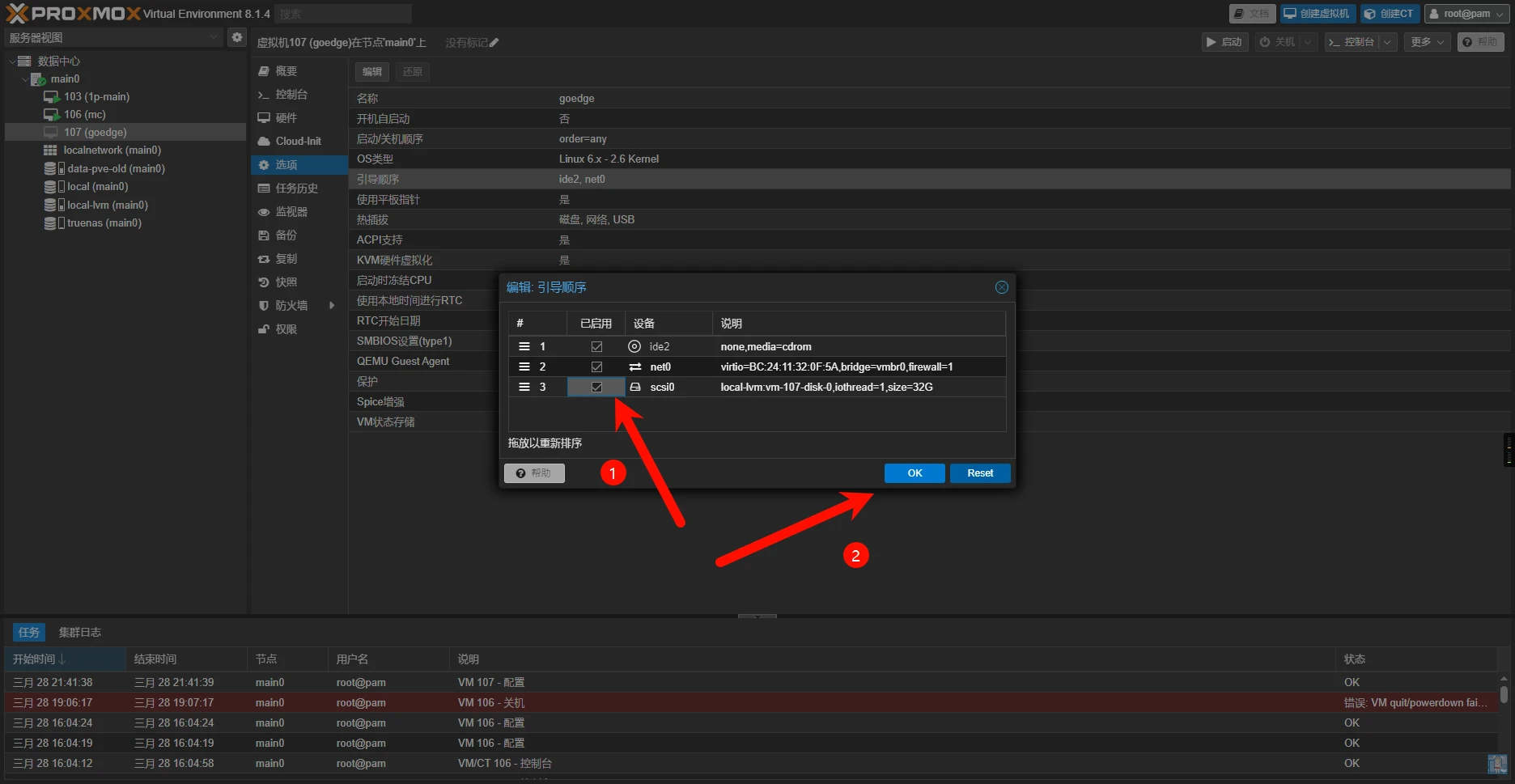
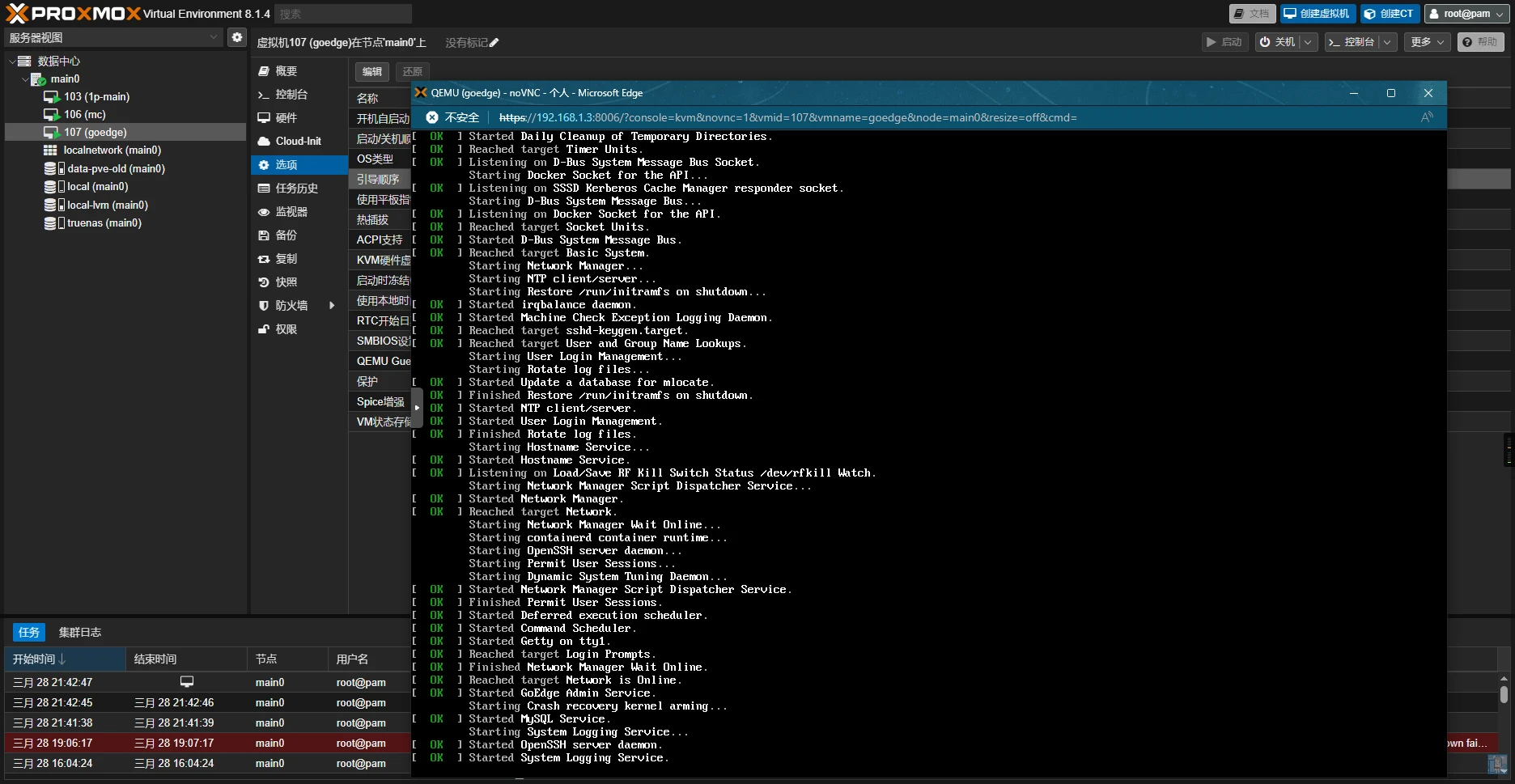
Then boot it up and it can start. Data rescue succeeded.
Comments
Discussion
Be kind and keep the discussion friendly.
Discussion
0 comments