HTML Basics - Quickly Build a Simple Website Page

Repost license
转载需先申请授权,并保留授权码、原文地址和文中 go/affiliate 链接。
Original URL:https://www.geekcorelab.com/post/html-beginner-quickly-build-a-simple-website-page
The Difference Between Dynamic and Static Websites
Common beginner misconceptions:
- A dynamic website does not mean a website with animations or moving elements
- A static website does not mean a website without animations or moving elements
The correct understanding is:
- A dynamic website means the HTML (HyperText Markup Language) returned to users is generated dynamically. For example, my website is a dynamic website: I can log in to the backend to publish articles without updating the HTML code; instead, the articles are stored in a database, and then PHP (PHP: Hypertext Preprocessor) reads the content from the database and places it in the designated location to render the final interface users see
- A static website means no database is needed; the website is pure HTML+CSS+JS, and there is nothing like PHP to dynamically generate pages. Usually, such websites do not have a login feature, because the HTML is fixed and cannot return different pages depending on the user
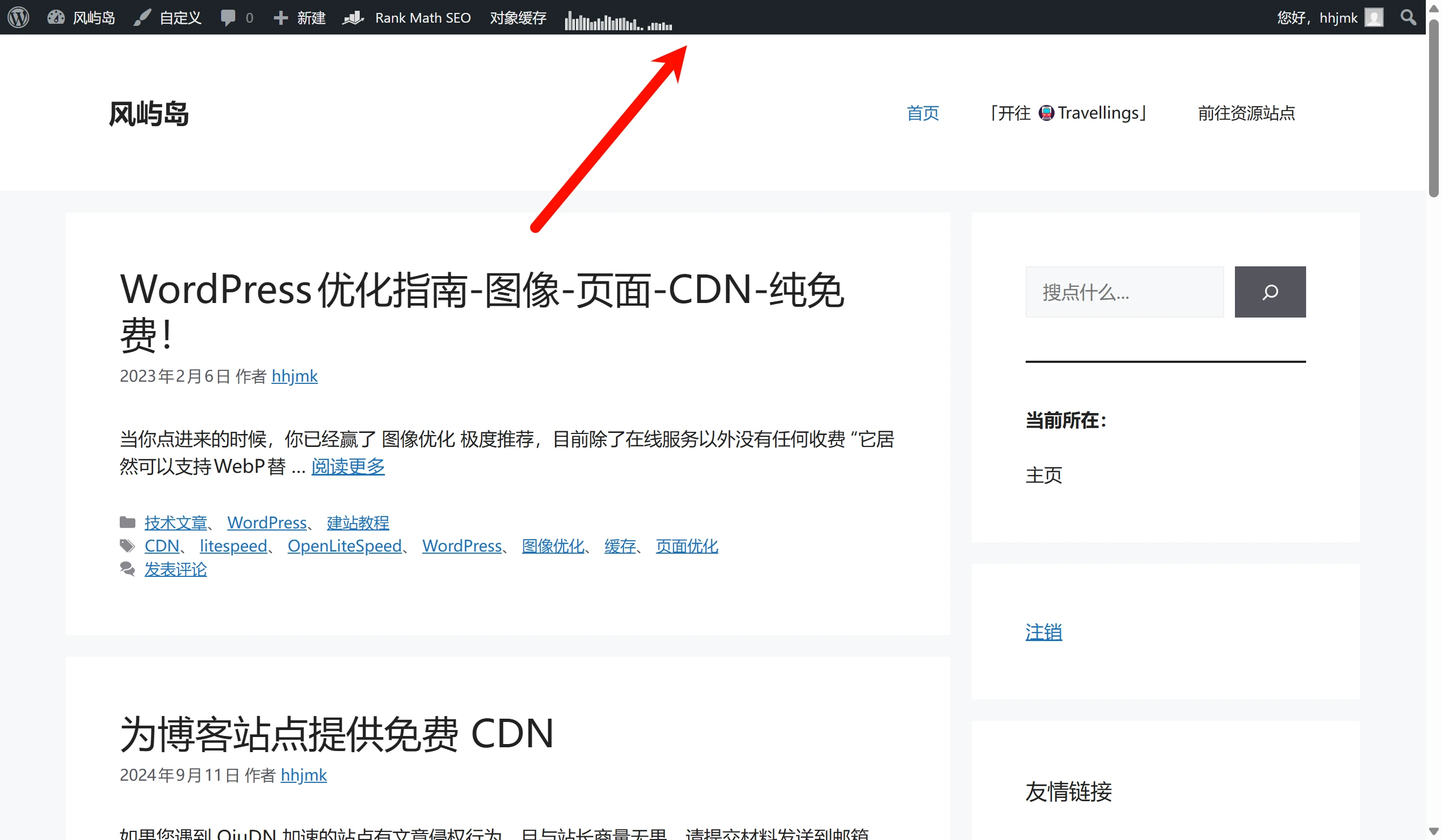
Let's use a simple example to understand dynamic websites. My website is built with WordPress and is a typical dynamic website; it returns different pages depending on which user is logged in
After I log in to the website, there is an Admin Bar for convenient site management, but visitors cannot see this admin bar
The First HTML Page
Right-click on your desktop, create a new text document, rename it to "index.html" (you need to check “Show file name extensions” under View in File Explorer first), and then paste the following content into it
<html>
<head>
<meta charset="utf-8">
<title>第一个静态网页</title>
</head>
<body>
    <h1>我的第一个标题</h1>
    <p>我的第一个段落。</p>
</body>
</html>
After saving, open it with a browser and you will see a heading and a paragraph, but it doesn't look very nice. We can use CSS to add styles to HTML, but CSS is still a bit complicated for me—I can only hand-write some simple styles. So let's bring in our AI:
<html lang="en">
<head>
<meta charset="UTF-8">
<meta name="viewport" content="width=device-width, initial-scale=1.0">
<title>美化页面示例</title>
<style>
body {
    font-family: 'Arial', sans-serif;
    margin: 0;
    padding: 0;
    background-color: #f4f4f4;
  }
.container {
width: 80%;
margin: auto;
overflow: hidden;
}
header {
background: #50b3a2;
color: white;
padding-top: 30px;
min-height: 70px;
border-bottom: #e8491d 3px solid;
}
header a {
color: #ffffff;
text-decoration: none;
text-transform: uppercase;
font-size: 16px;
}
header ul {
padding: 0;
list-style: none;
}
header li {
display: inline;
padding: 0 20px 0 20px;
}
header #branding {
float: left;
}
header #branding h1 {
margin: 0;
}
header nav {
float: right;
margin-top: 10px;
}
header .highlight, header .current a {
color: #e8491d;
font-weight: bold;
}
header a:hover {
color: #ffffff;
font-weight: bold;
}
section#showcase {
min-height: 400px;
background: url('showcase.jpg') no-repeat 0 -100px;
text-align: center;
color: #ffffff;
}
section#showcase h1 {
margin-top: 100px;
font-size: 55px;
margin-bottom: 10px;
}
section#showcase p {
font-size: 20px;
}
section#main {
padding: 15px;
background: #ffffff;
}
section#main .content-title {
color: #50b3a2;
}
section#main article#main-col {
float: left;
width: 60%;
}
section#main aside#sidebar {
float: right;
width: 30%;
padding-left: 20px;
}
section#main article#main-col h1 {
color: #e8491d;
}
section#main aside#sidebar p {
color: #7f7f7f;
}
footer {
background: #e8491d;
color: white;
text-align: center;
padding: 10px;
position: relative;
bottom: 0;
width: 100%;
}
</style>
</head>
<body>
<header>
<div class="container">
<div id="branding">
<h1>My Website</h1>
</div>
<nav>
<ul>
<li class="current"><a href="#">Home</a></li>
<li><a href="#">About</a></li>
<li><a href="#">Services</a></li>
<li><a href="#">Contact</a></li>
</ul>
</nav>
</div>
</header>
<section id="showcase">
<div class="container">
<h1>Welcome to My Website</h1>
<p>Here you can find all the information you need.</p>
</div>
</section>
<section id="main">
<div class="container">
<article id="main-col">
<h1 class="content-title">About Us</h1>
<p>This is a simple example of a CSS-styled HTML page. The CSS is used to control the layout, colors, fonts, and other visual aspects of the page.</p>
<p>It's a great way to make your web content more appealing and user-friendly.</p>
</article>
<aside id="sidebar">
<h2>What We Do</h2>
<p>Here are some of the services we offer.</p>
</aside>
</div>
</section>
<footer>
<p>My Website © 2024</p>
</footer>
</body>
</html>
Let's pick some examples to explain how CSS works
body {
font-family: 'Arial', sans-serif;
margin: 0;
padding: 0;
background-color: #f4f4f4;
}
This CSS takes effect throughout the entire <body></body>, which gives the illusion that it applies to the whole page. In fact, its scope is only the body tag; it does not apply to the head or footer tags
Comments
Discussion
Be kind and keep the discussion friendly.
Discussion
0 comments