HTML Getting Started - Publishing a Website to the Public Internet

Repost license
转载需先申请授权,并保留授权码、原文地址和文中 go/affiliate 链接。
Original URL:https://www.geekcorelab.com/post/introduction-to-html-publishing-a-website-to-the-public
The threshold for publishing a website to the public Internet is very low. Simply put, you need a domain name and a server (or virtual hosting). Let's first look at the difference between a server and virtual hosting.
- A server uses virtualization technology to virtualize multiple low-spec servers on one high-spec server for customers to use. Generally speaking, a server offers a very high degree of freedom, and most have their own dedicated IP address, but everything must be manually set up from scratch, such as the web server, database, etc. However, you can also install a virtual hosting panel on your own server and rent it to other users, which can recover some costs and reduce resource waste
- Virtual hosting uses a panel, web server, etc., working together on one server to let multiple users use the same server at the same time, but each user can only occupy a certain amount of disk space (usually 1-5GiB or more). CPU and memory resources are usually shared. Although users can use databases, the databases are also shared by multiple users, with database sharing based on multiple tables in a single instance and multiple users in a single instance
Overall, servers are more flexible, while virtual hosting is more cost-effective. This tutorial mainly discusses how to use a server, because the usage threshold for virtual hosting is extremely low
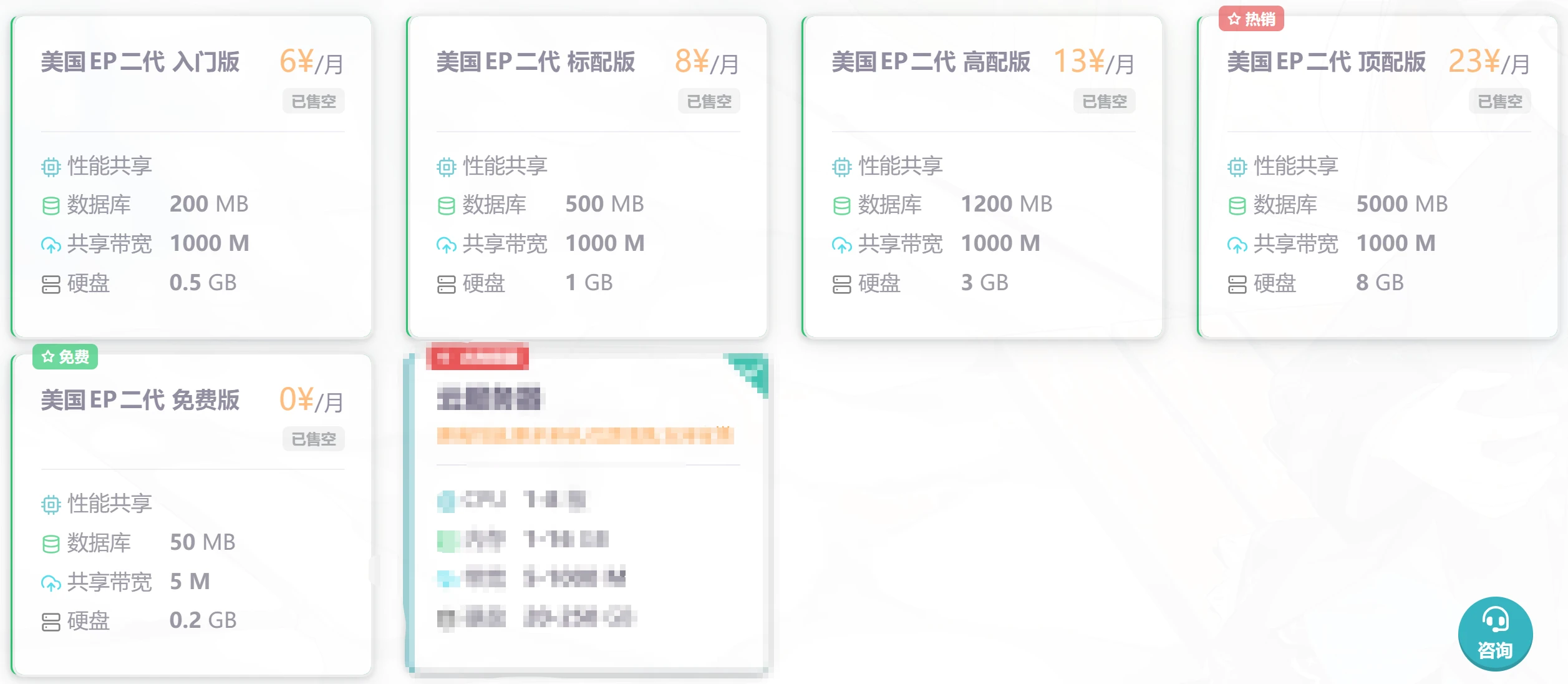
Server Configuration Recommendations
At the current stage, we have only learned static HTML pages. Generally speaking, you do not need a very high configuration to handle a decent amount of concurrency. You can use free virtual hosting for practice (InfinityFree), but free options are usually not very easy to use. Therefore, I recommend that after confirming your web page meets expectations, use a server to set it up; servers outperform virtual hosting in every aspect
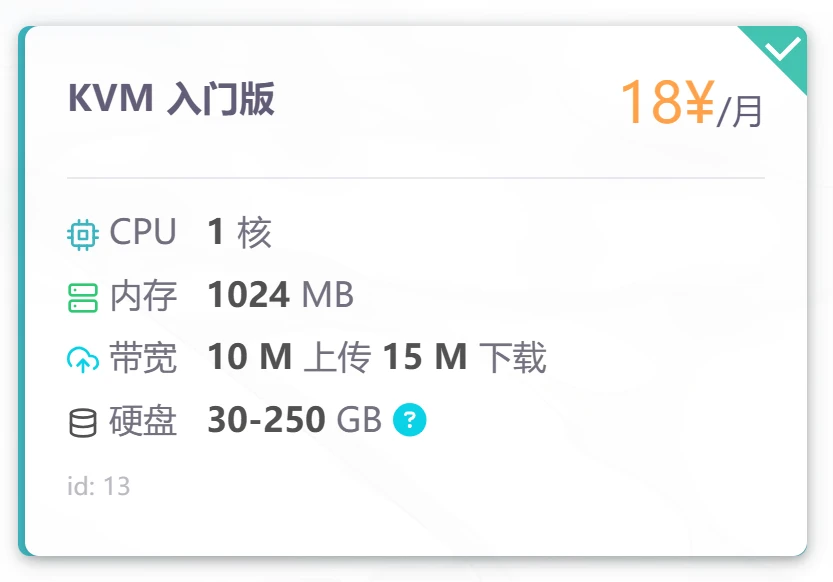
For us at present, an 18-yuan-per-month plan is enough to meet our needs. If you use coupons as well, the cost-effectiveness can be very high (high cost-effectiveness 雨云: Discount Link 1, high route quality 狗云: Discount Link 2)
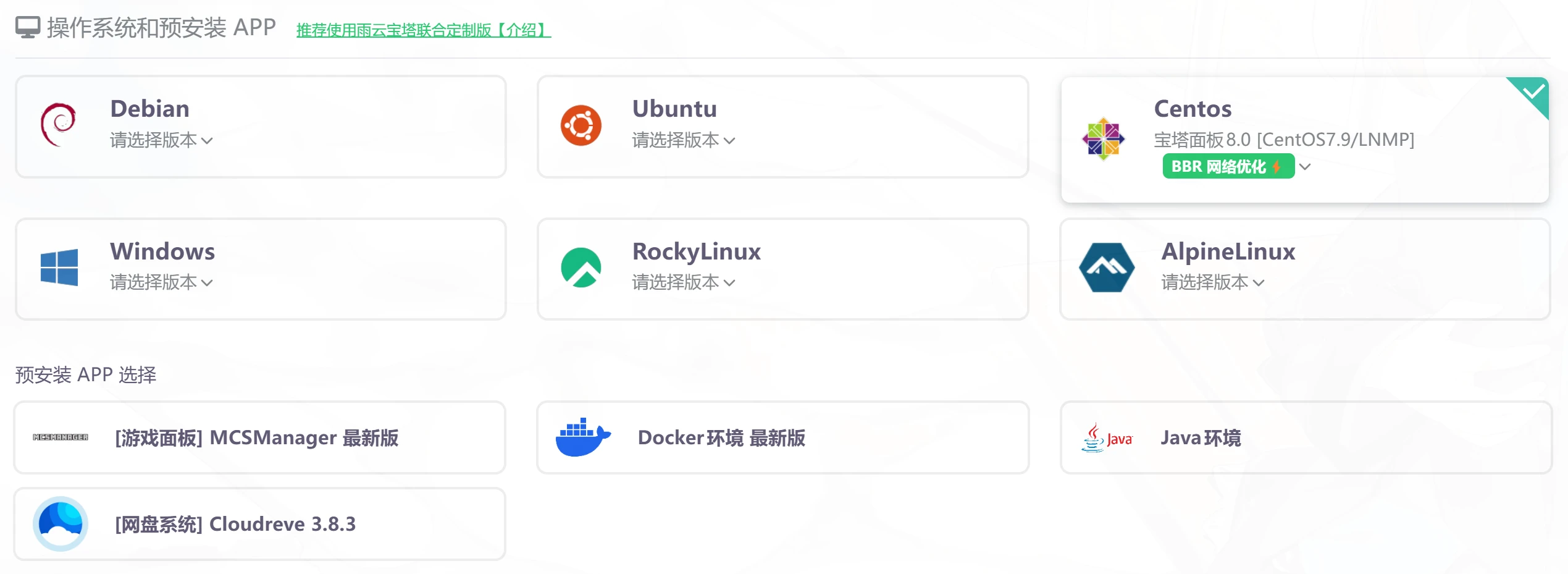
If you want out-of-the-box usability, then it is recommended (but also not recommended, because it is too old) to use this system image:
If you want more stability, it is recommended to use Ubuntu, Debian, or RockyLinux
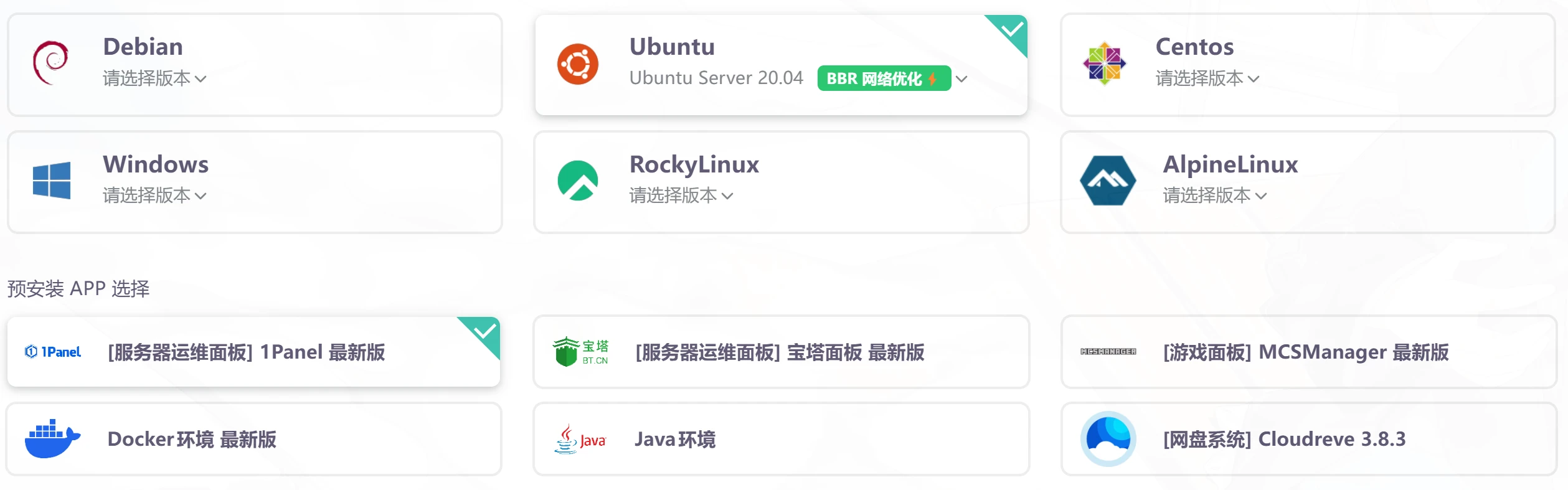
For beginners, it is recommended to choose pre-installed apps; just choose one between 1Panel and Baota Panel. Baota Panel is more recommended for beginners because 1Panel involves containerization and also requires more modifications to use comfortably. Both panels have their pros and cons: the 1Panel official team does not keep its promises and, for popularity, ignores the open-source rules it set itself; Baota Panel, on the other hand, leaks server information, reports IPs, etc. If you want to learn more or do not like these panels, you can uncheck pre-installed apps and install the environment yourself after the server finishes booting. LNMP is recommended (LNMP one-click installer)
We use SSH tools (such as MobaXterm, Putty, etc.) and fill in the SSH login options according to the information on the server management page (public IP address, remote username, remote password)

There are many tutorials for panels. This tutorial uses installing LNMP as an example. After logging in to the server, enter the following command to automatically install LNMP (command generator)
wget http://soft.lnmp.com/lnmp/lnmp2.0.tar.gz -O lnmp2.0.tar.gz && tar zxf lnmp2.0.tar.gz && cd lnmp2.0 && LNMP_Auto="y" DBSelect="0" PHPSelect="11" SelectMalloc="1" ./install.sh lnmp
If you also want to deploy a more advanced dynamic website, you need to install an environment with a database
wget http://soft.lnmp.com/lnmp/lnmp2.0.tar.gz -O lnmp2.0.tar.gz && tar zxf lnmp2.0.tar.gz && cd lnmp2.0 && LNMP_Auto="y" DBSelect="4" Bin="n" DB_Root_Password="root.mysql.password" InstallInnodb="y" PHPSelect="11" SelectMalloc="1" ./install.sh lnmp
For now, using the above is enough for us
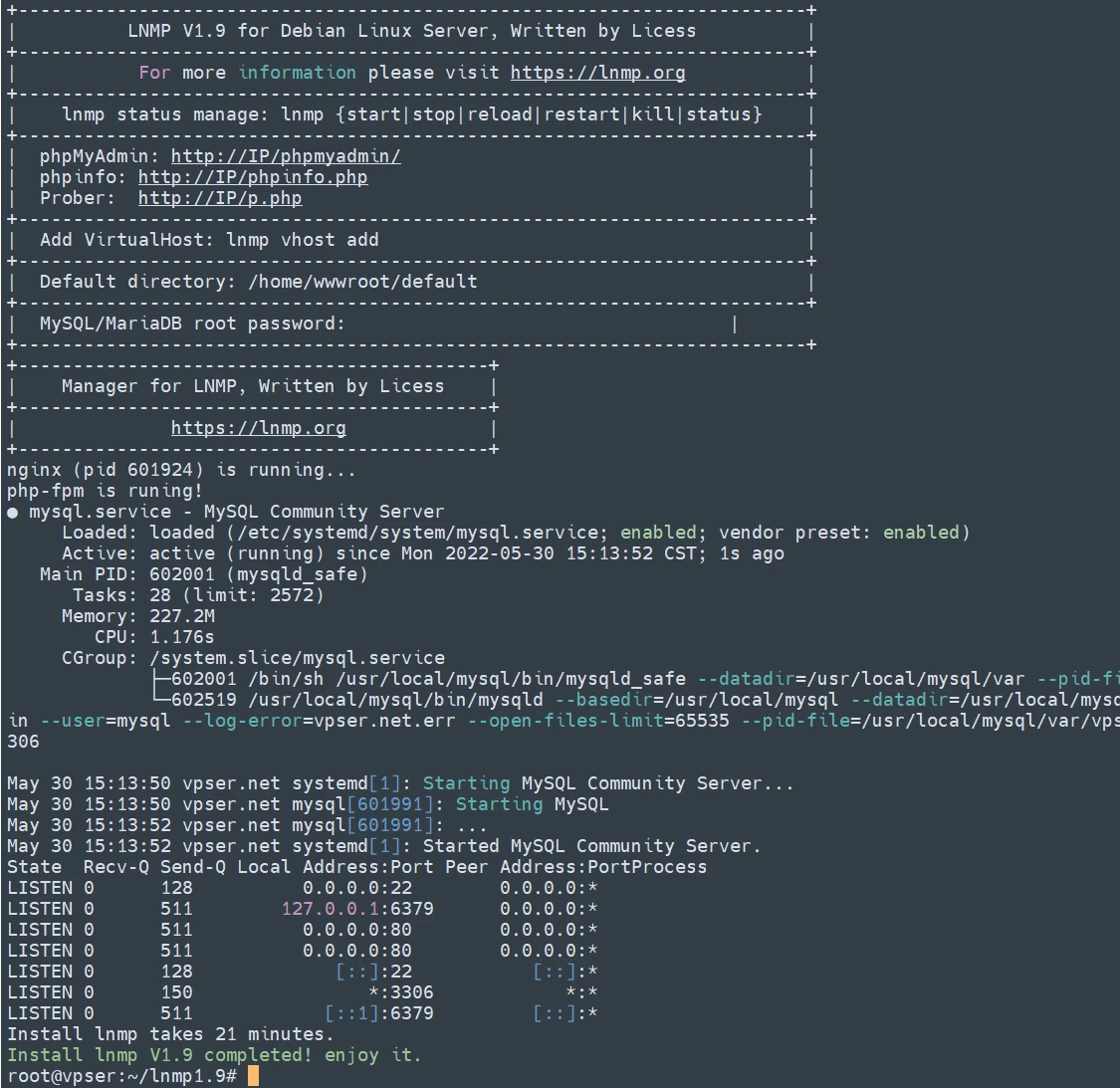
After installation is complete, there will be a prompt similar to this:
From the image, we can see that the default site directory is /home/wwwroot/default. We only need to modify the web page content inside it
Comments
Discussion
Be kind and keep the discussion friendly.
Discussion
0 comments